D2L / Brightspace Administrator – LTI v1.3 Setup
Set up a new integration
To get started, create your Plagiarism Detector account at https://plagiarismdetector.net/login if you haven’t already.
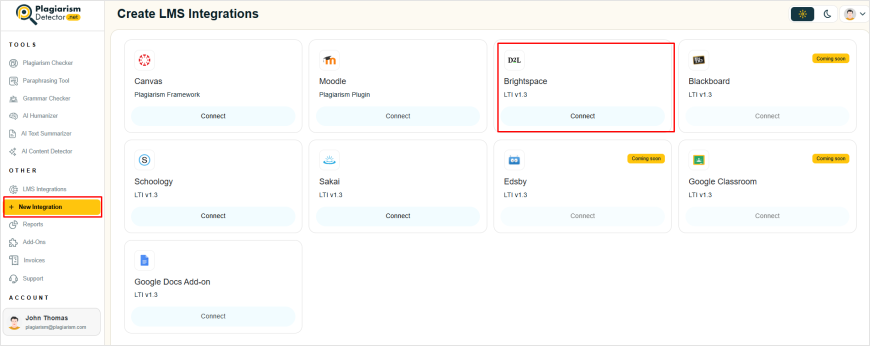
Once you log in, go to the sidebar and select the “New Integrations” option. You’ll be directed to the Integration setup page, and choose “Brightspace” from the list.
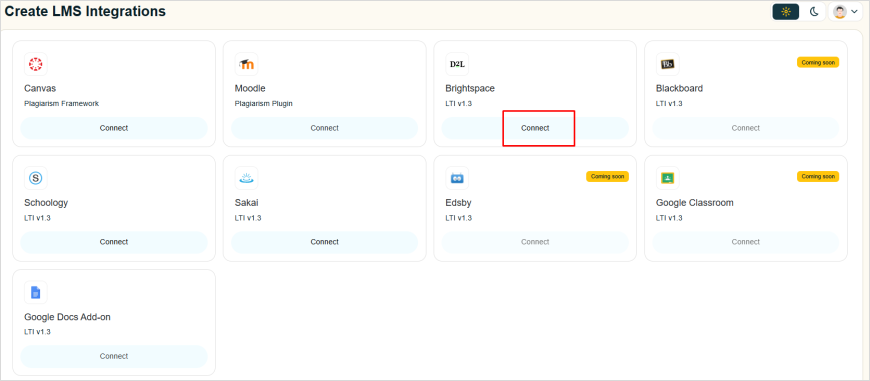
Click on the Connect button.
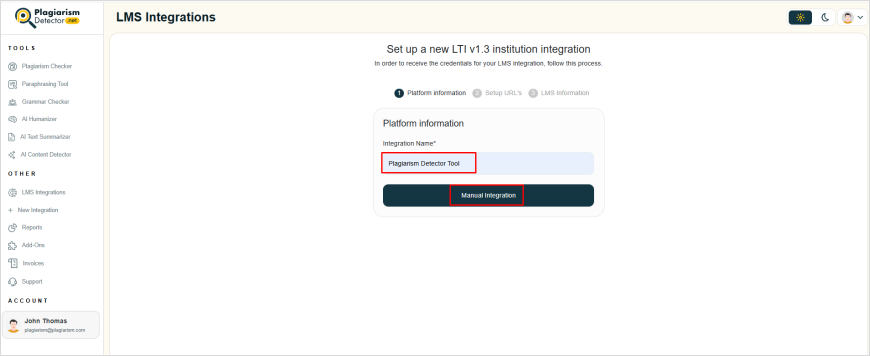
Begin by creating a new Brightspace integration. Enter your preferred integration name, then proceed by selecting the Manual Integration option.
In a new tab, sign in to Brightspace using your administrator account. Once logged in, locate the Admin Tools icon (the gear symbol in the upper-right corner) and click on it.
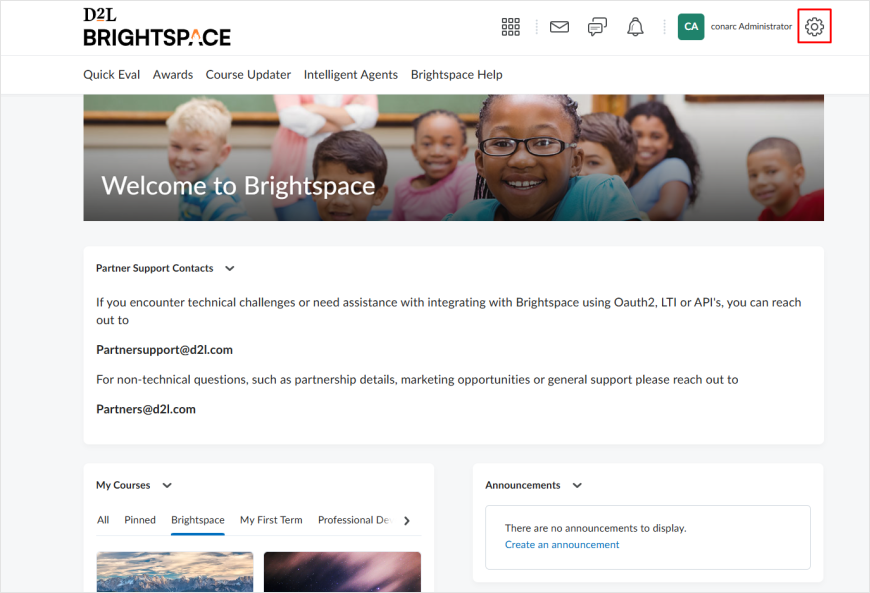
From the menu that opens, click on Manage Extensibility to proceed.
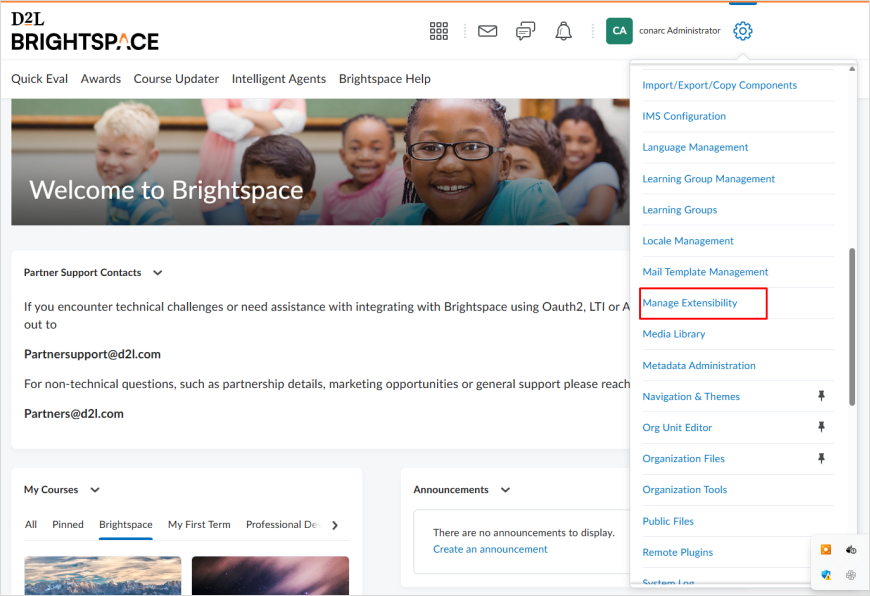
Click on the LTI Advantage tab to continue.
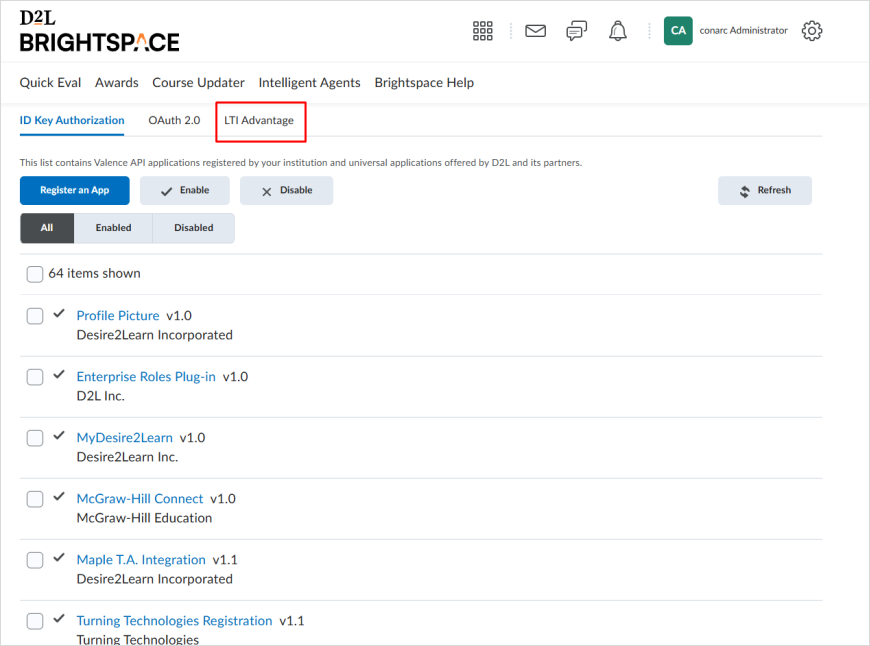
Click on the Register Tool button.
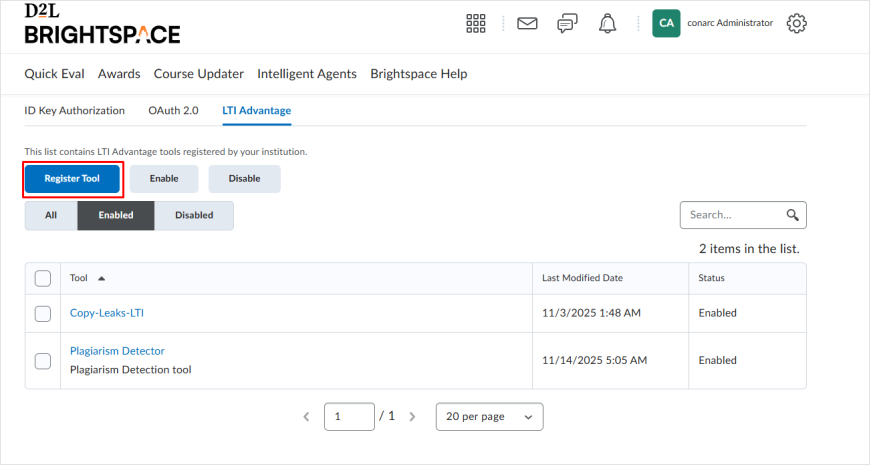
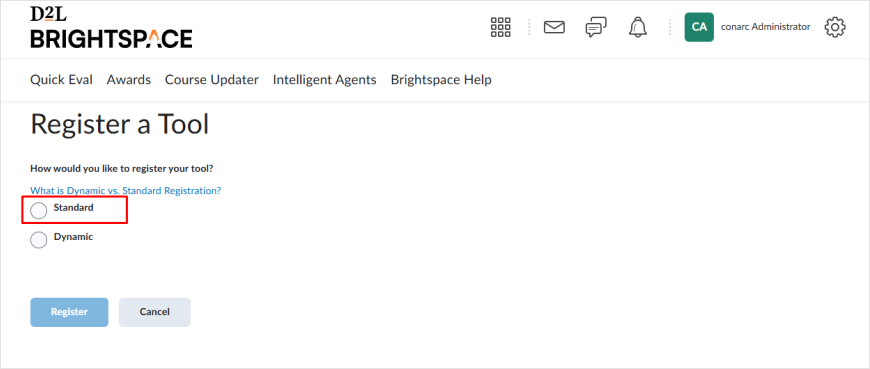
Under the Register Tool section, select the Standard option to proceed.
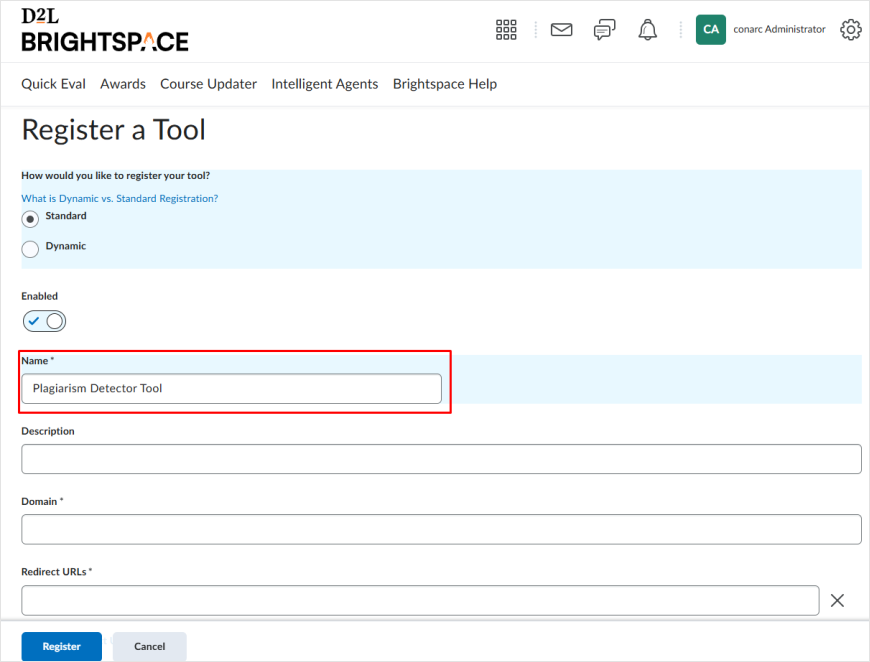
A new form will be displayed. Type in the tool’s Name in the name box.
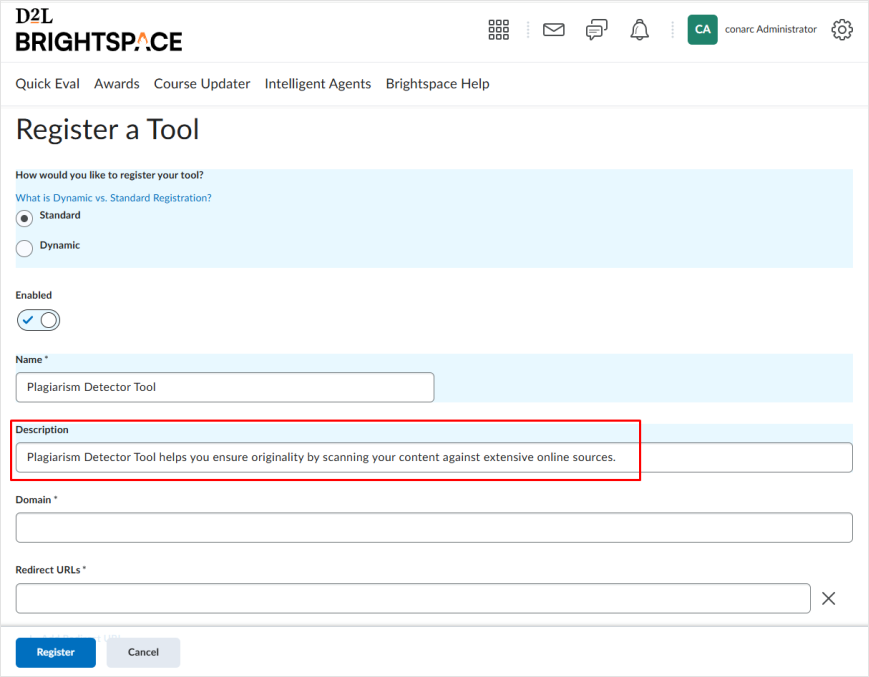
The Description section can be filled in, but it is not mandatory.
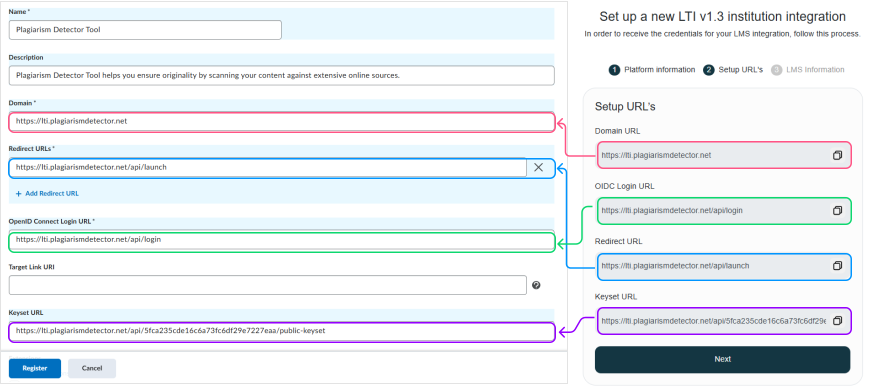
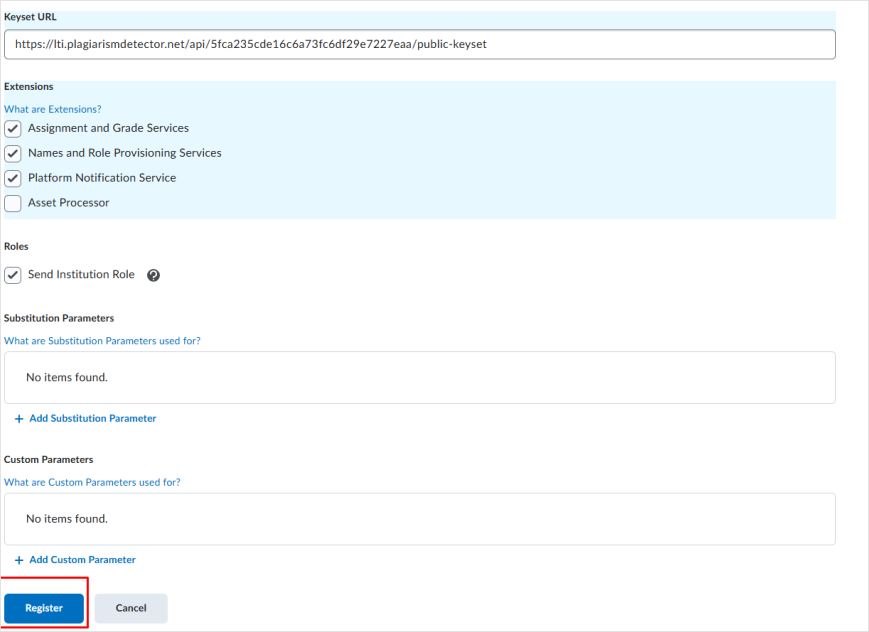
Navigate to the Plagiarism Detector tab and paste each link into its appropriate Brightspace input box as shown below.
In the Extensions section, check the first three options:
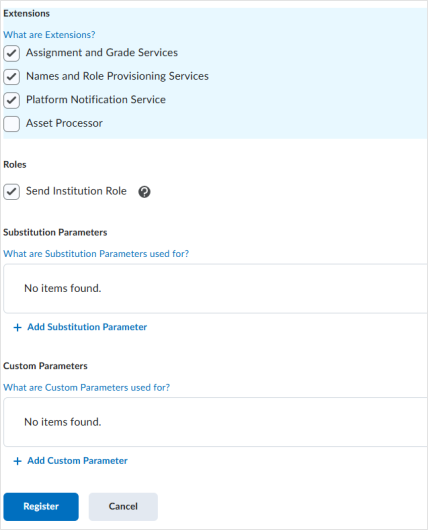
Click on the Register button in the bottom left of the screen.
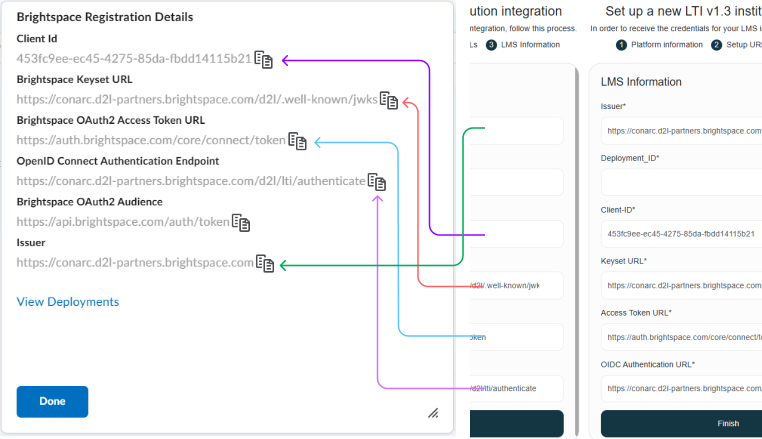
A new pop-up window will open. Copy the Brightspace Registration Details from it and paste it into the corresponding fields on the Plagiarism Detector page you previously left open.
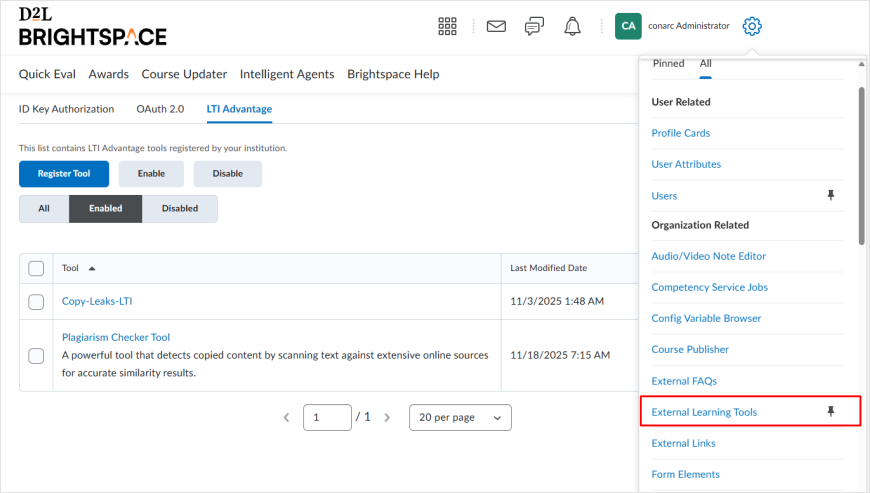
To proceed with deploying the tool created previously, click the Admin Tools icon in the upper-right area of your screen.
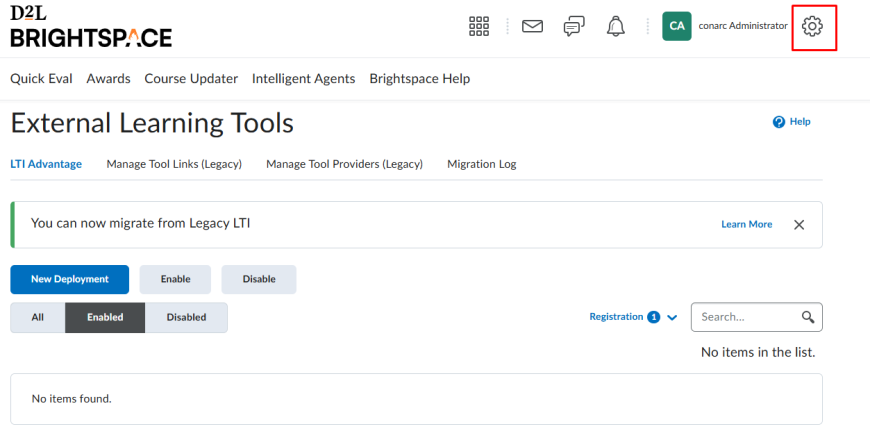
Choose External Learning Tools from the menu that appears.
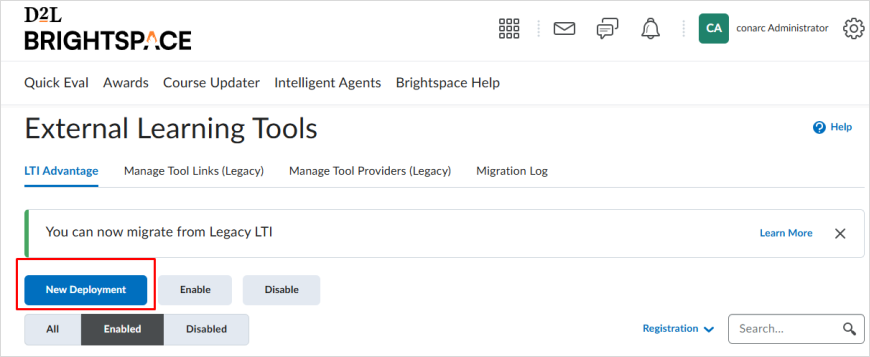
Click on the New Deployment button:
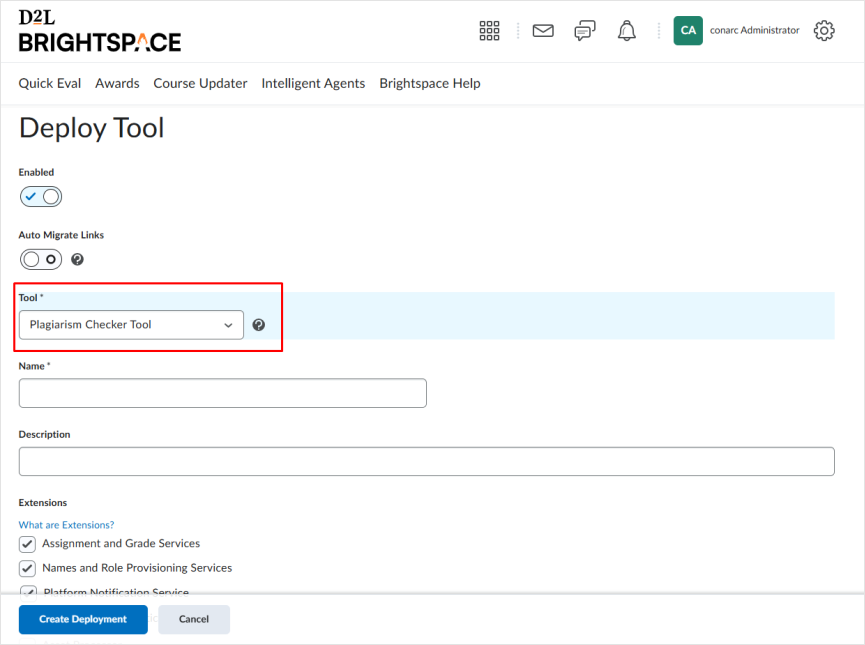
A form will appear on your screen. Choose the previously registered tool from the Tool drop-down menu.
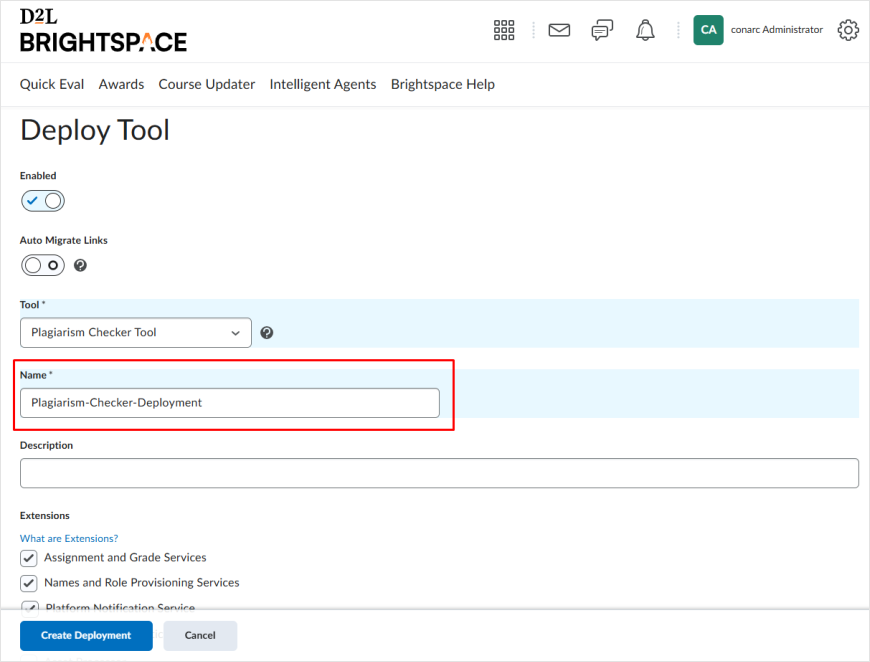
In the Name field, enter a name for the tool you are about to deploy.
In the Extensions section, check all the checkboxes:

In the Security Settings, check the following checkboxes:
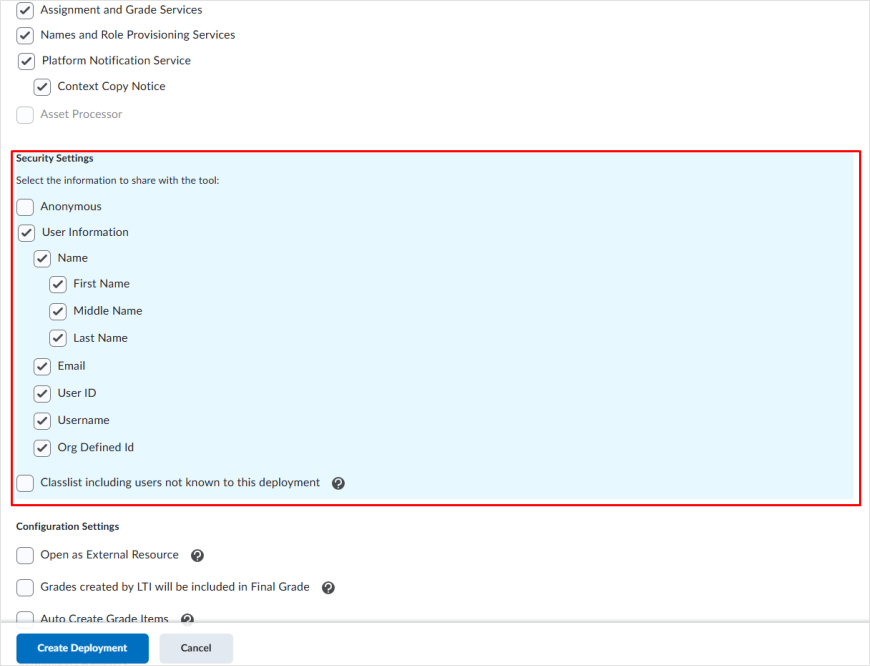
Verify that your configuration matches exactly what is displayed in the screenshot.

Click on the Add Org Units:
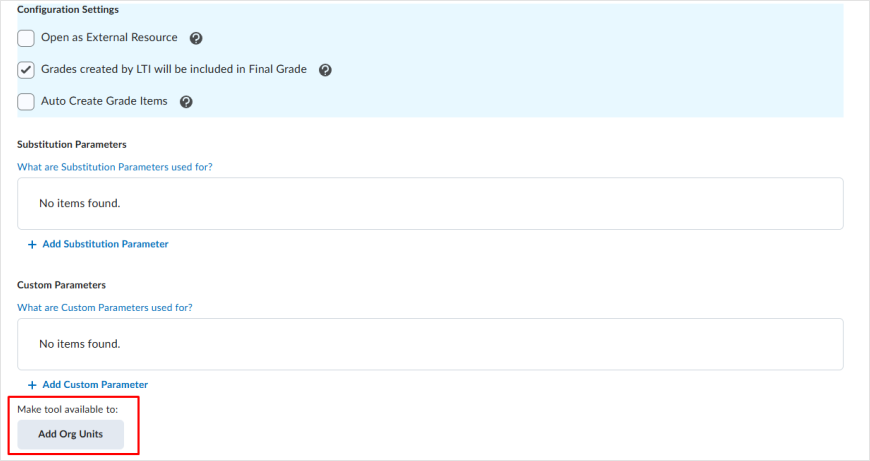
From the menu that appears, select the courses where you intend to use the plagiarism checker. You can use the search bar to type in the Courses or Org Units you wish to include.
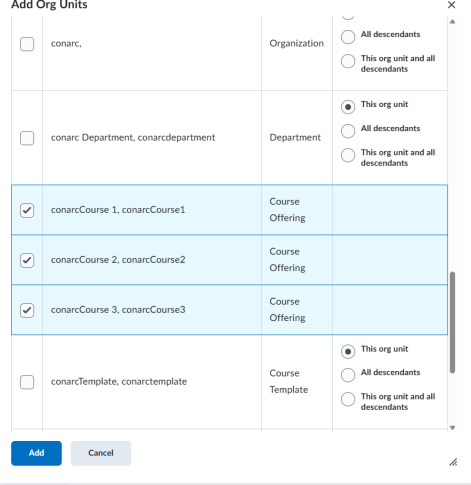
Click on the Create Deployment at the bottom of the screen:
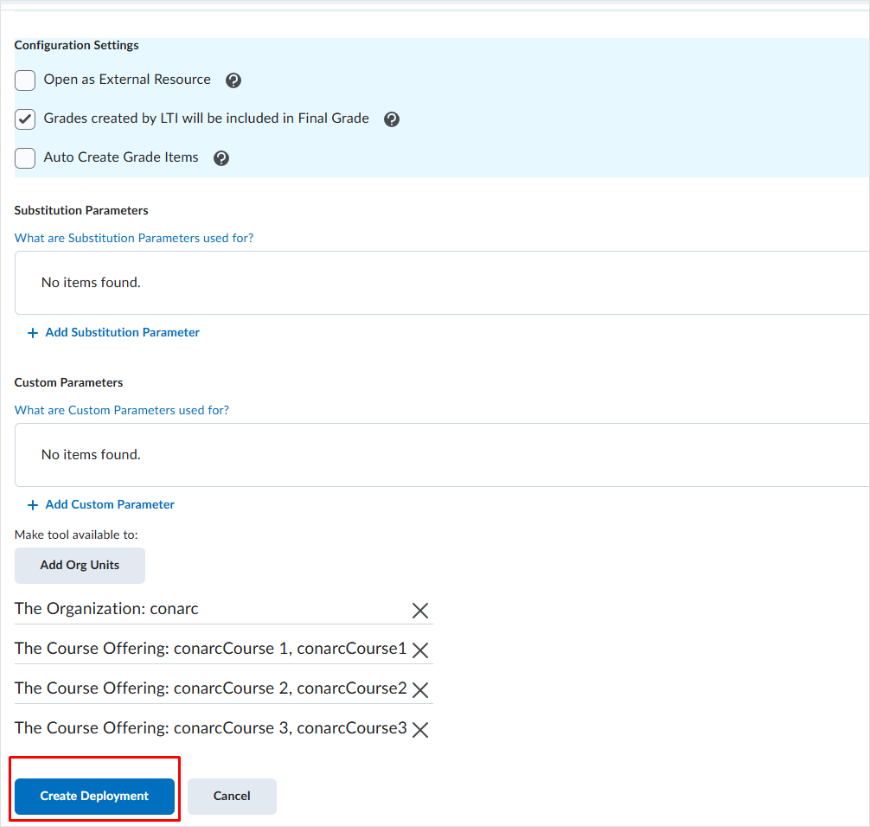
A Deployment ID will be generated:
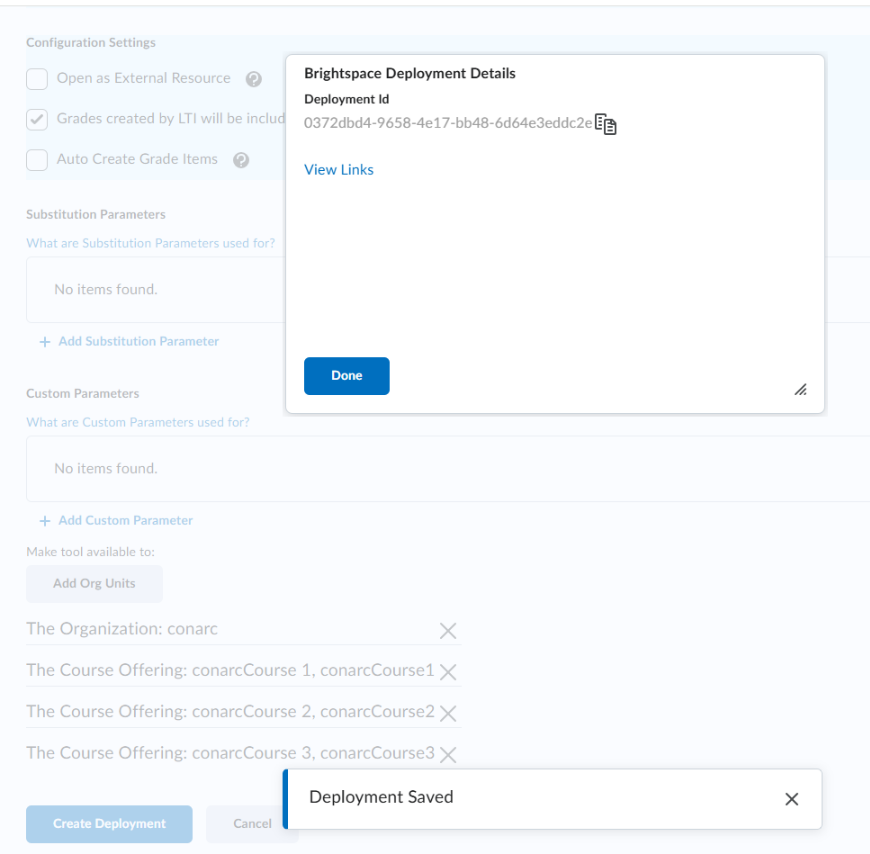
After copying the generated deployment ID, insert it into your Plagiarism Detector’s LMS Information section and select Finish:
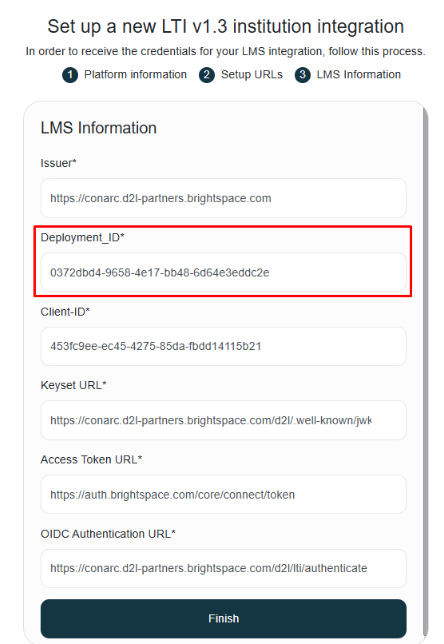
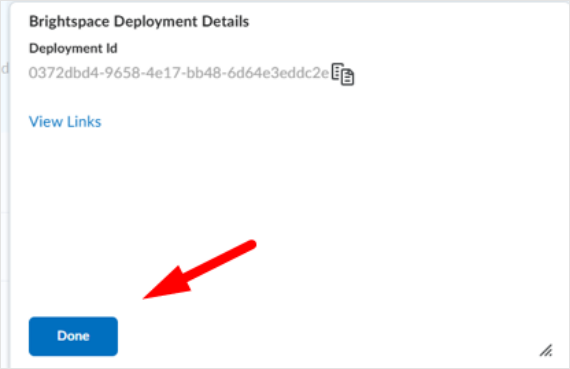
Once the deployment process is complete, click on the Done button.
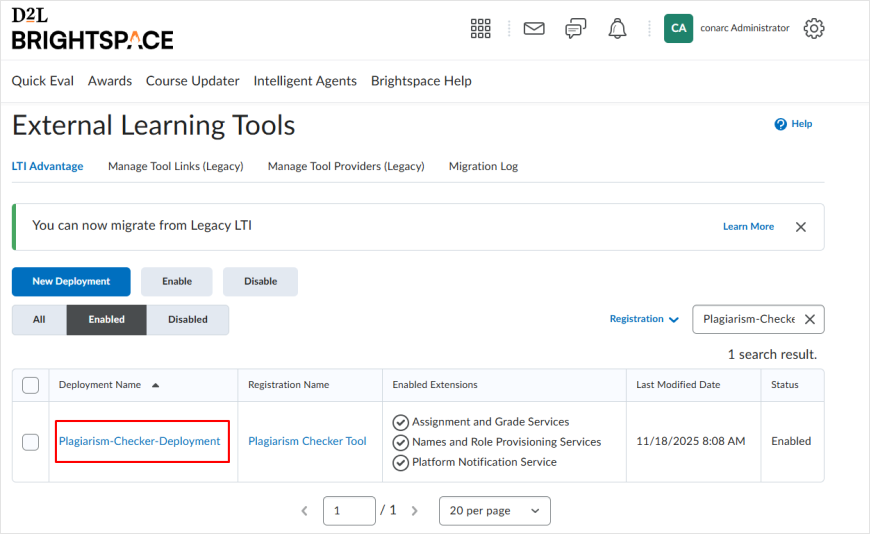
You will return to the previous page, where the table will display the tool you just deployed. Click on the tool, and the name displayed will match the one you choose
Create Teacher Scan Tool
If you have already configured the D2L-Brightspace integration and now wish to add the Teacher Scan Tool, please proceed with the following steps:
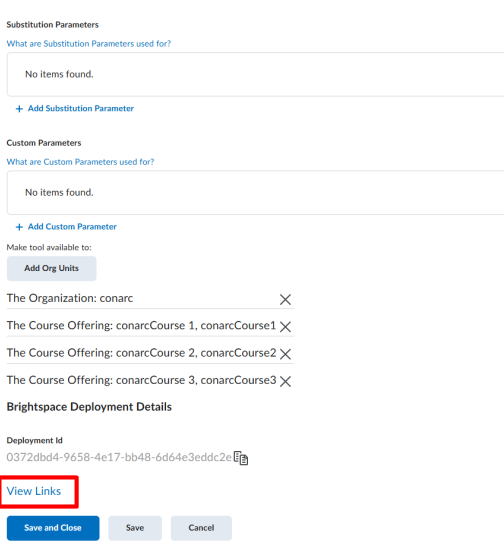
In the new tab, scroll down to the page’s end and click View Links. Do not close either tab during this process.
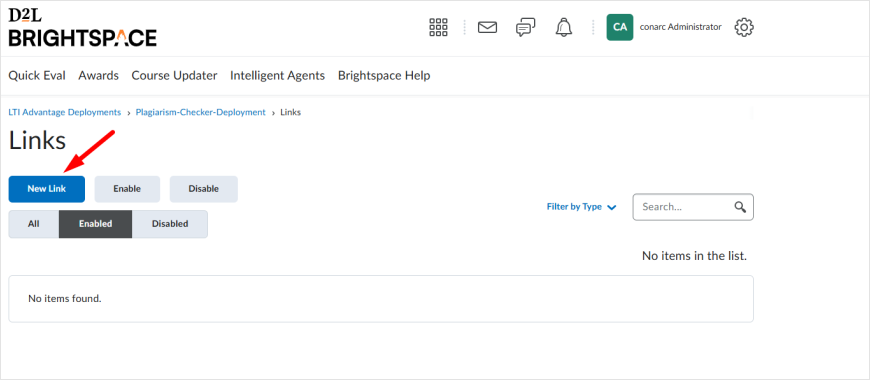
After the new page opens, locate and click on New Link.
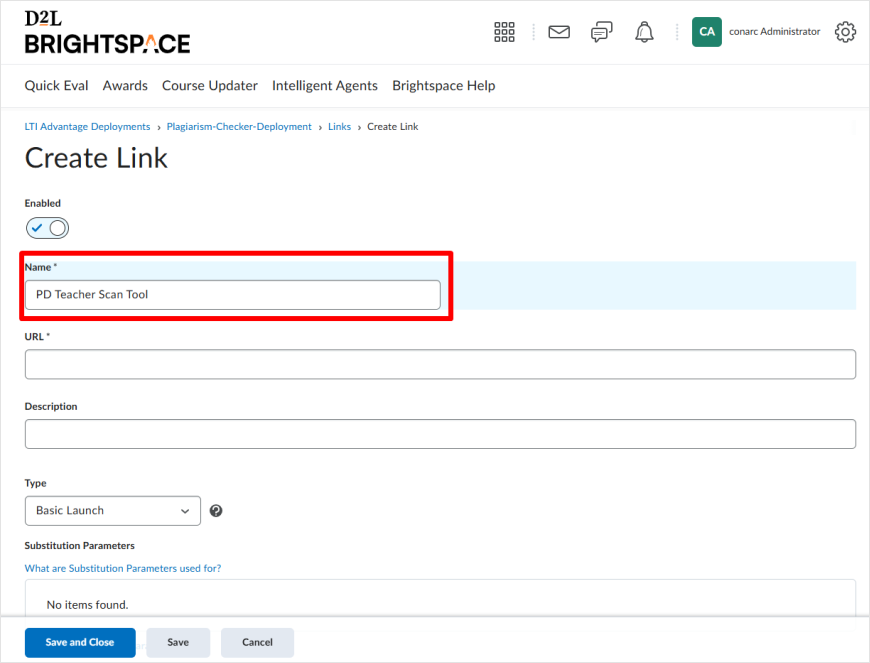
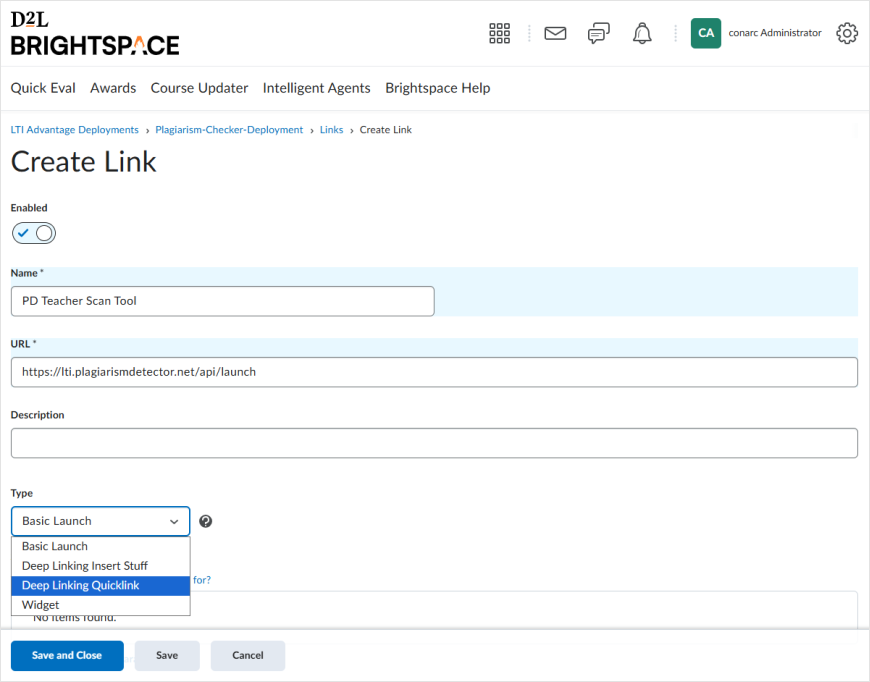
In the Name section, provide a name of your choice for the tool; this name will be displayed to faculty members.
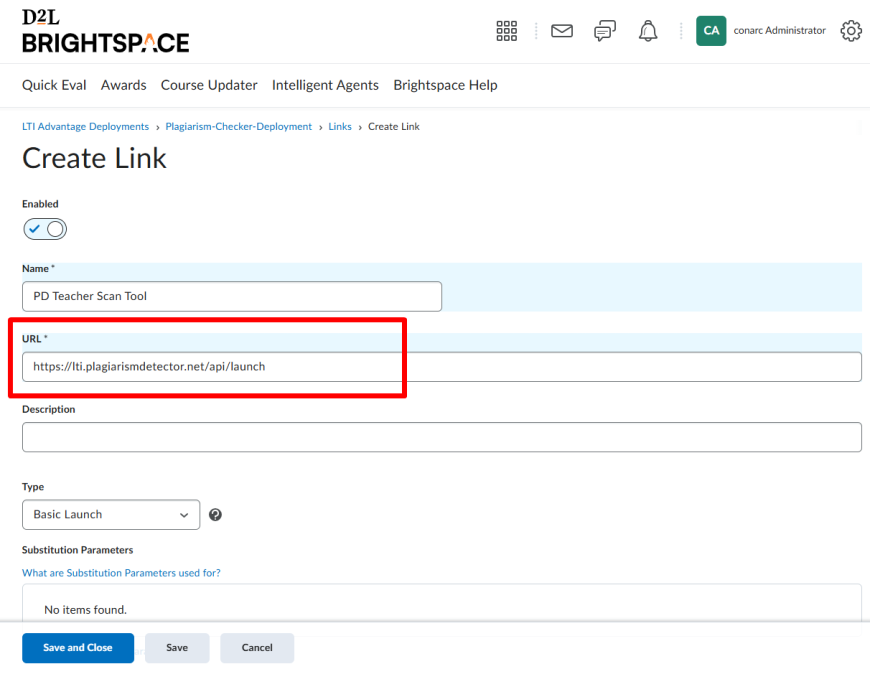
In the URL input field, enter the link to the tool. Here, we add the link previously generated in Plagiarism Detector https://lti.plagiarismdetector.net/api/launch
From the Type dropdown menu, select the Deep Linking Quicklink option:
Click on the Save and Close button:
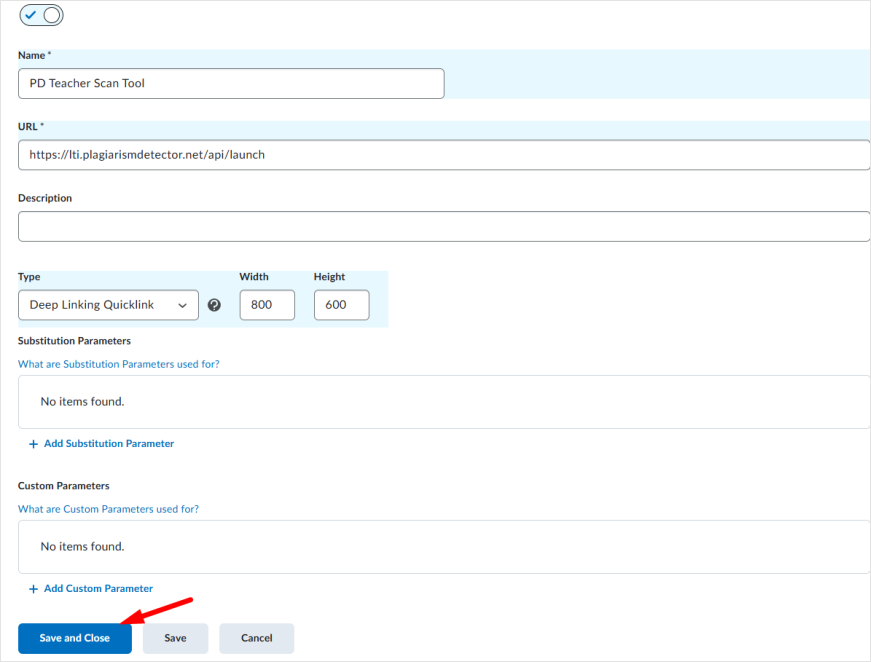
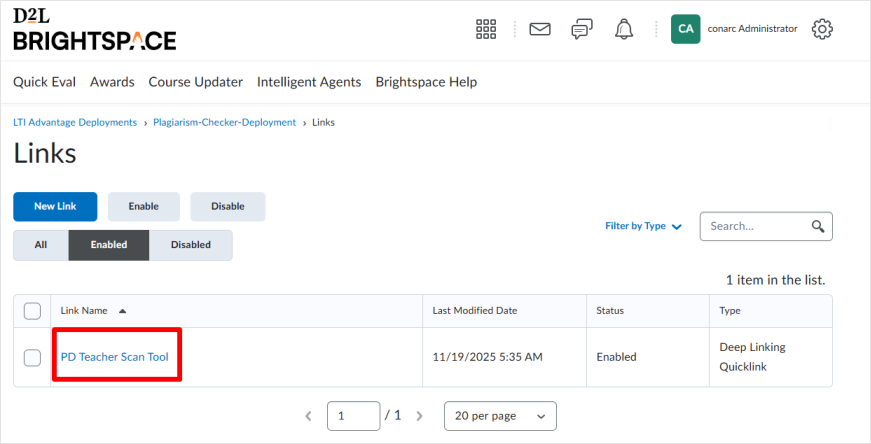
At this stage, we have set up one tool link the PD Teacher Scan Tool.