D2L / Brightspace Student Guide – LTI v1.3
Log in to Brightspace as a “Student”.
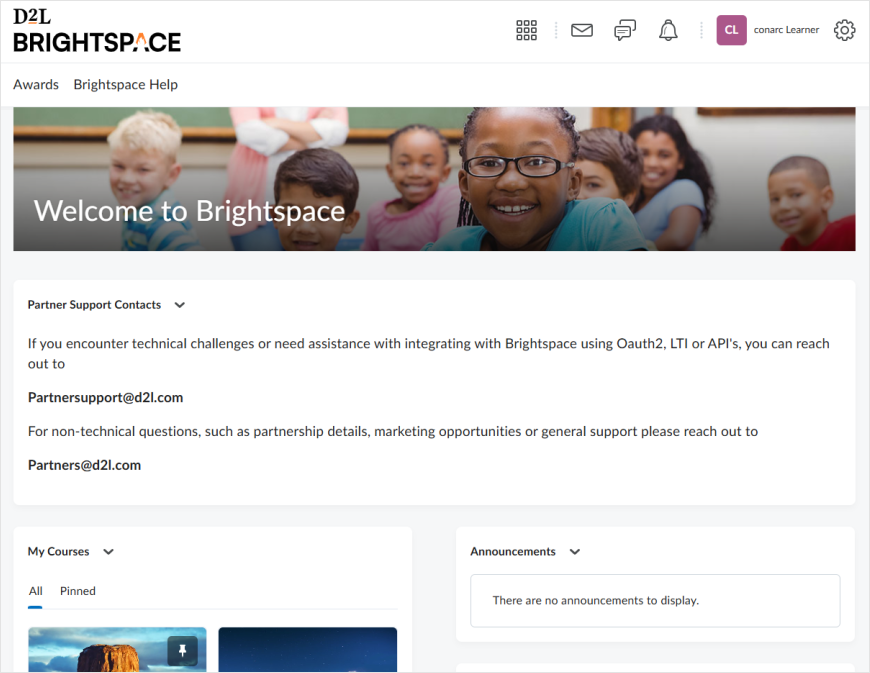
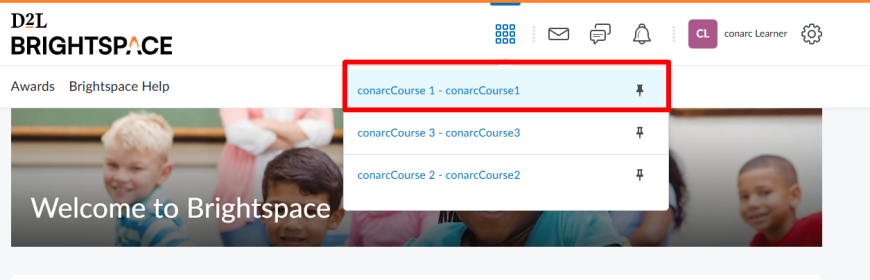
Select the course your instructor has chosen for posting the assignment.
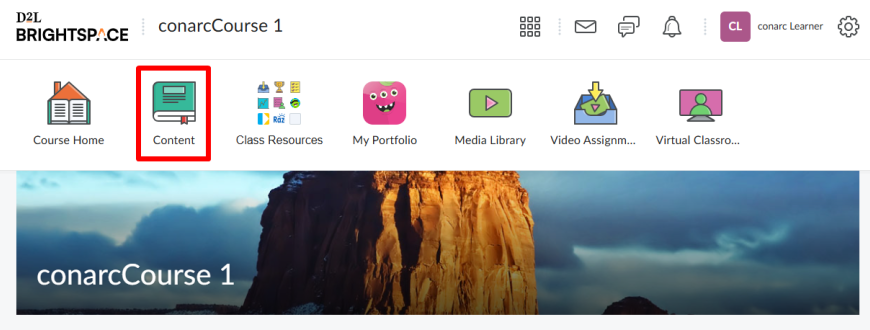
Click on the Content tab
You will find the newly posted assignment available there:

To submit your file, either click the Upload button or simply drag and drop it into the designated area.
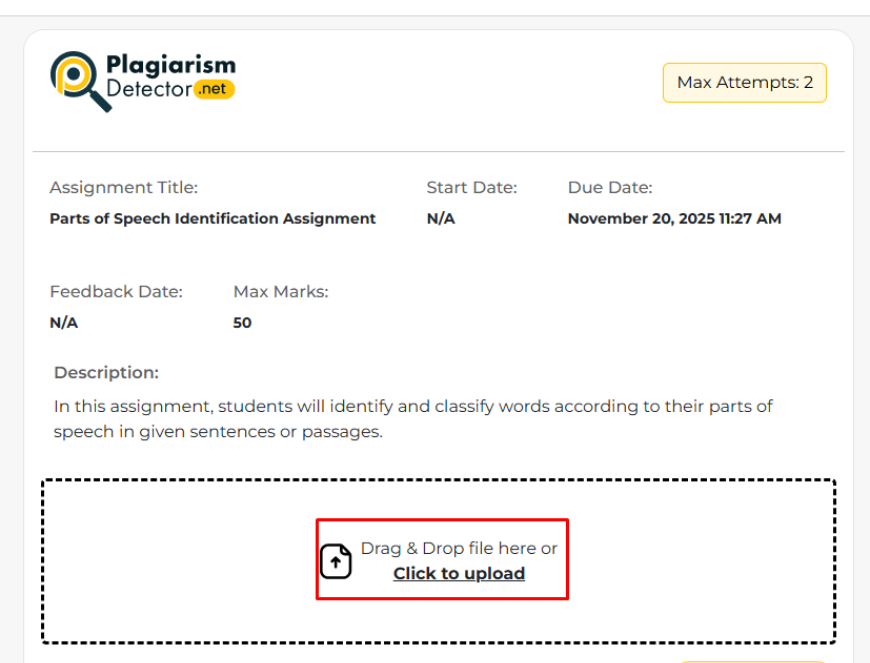
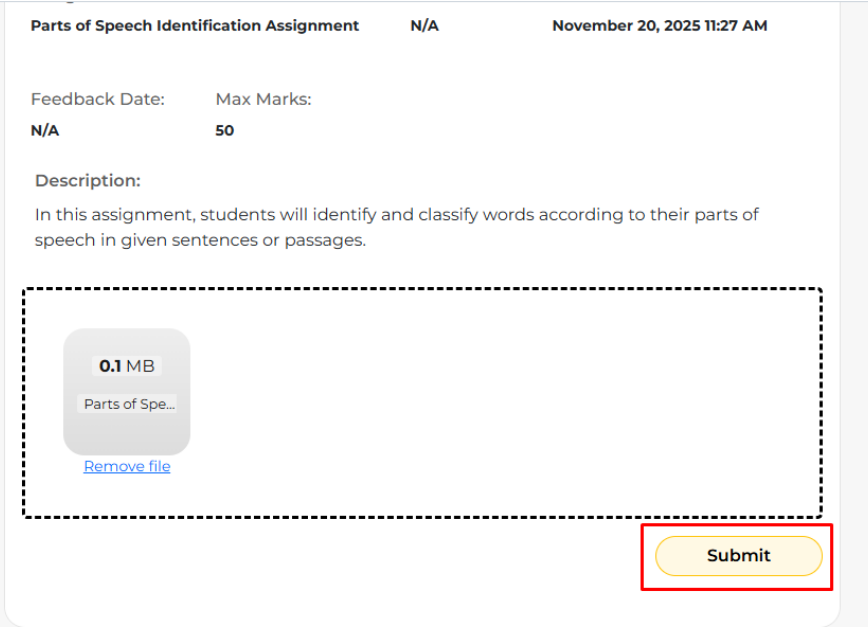
After uploading your file, click the Submit button to complete the process.
Once your assignment is submitted, the tool begins processing it.
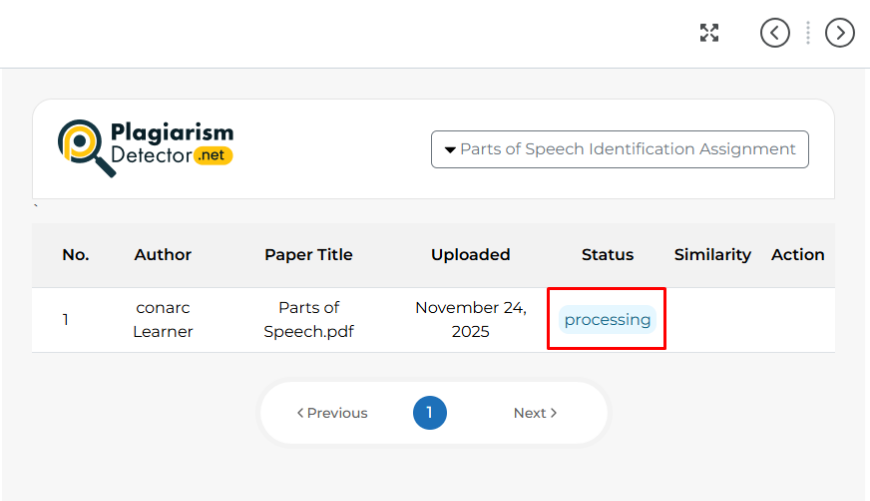
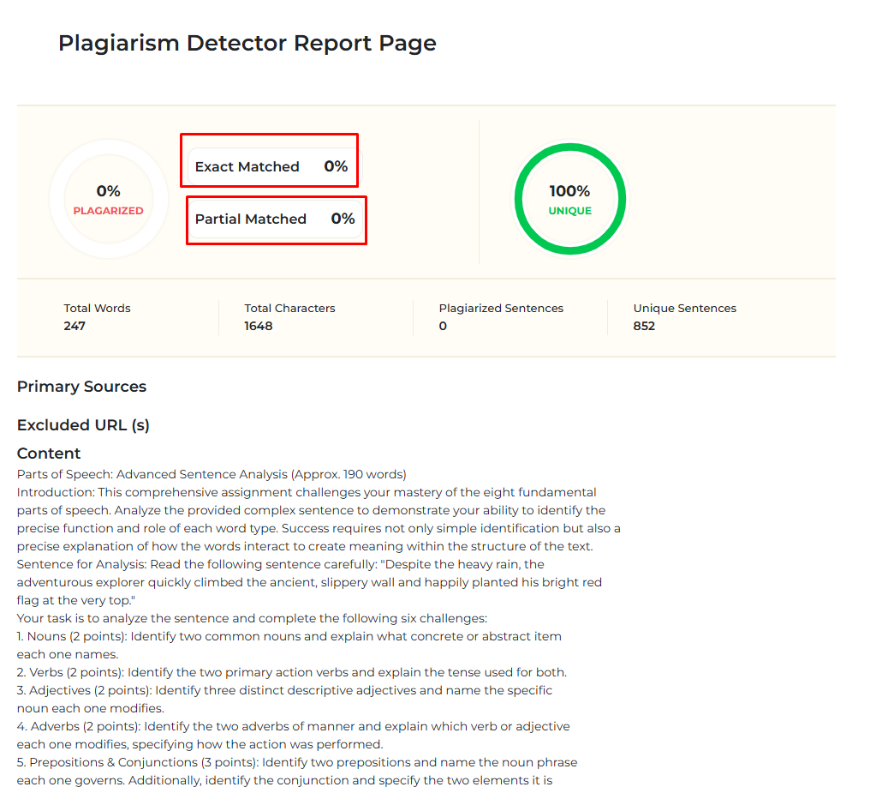
After processing, you’ll get a full plagiarism report showing your total similarity score, plus separate percentages for exact and partial matches. Your assignment check is now complete.